
🎬 Watch the video
This video is a whistle-stop tour around the Cognidox LMS system. After the video, read on to get some background, and find out how to learn more.
📘 What is the LMS?
The Cognidox LMS lets you assign training courses, track completion, and assess user knowledge. It's ideal for policies, procedures, onboarding, and compliance training.
Users see their assigned training in the My Training portlet. Each course includes training materials, optional quizzes, and, in some cases, uploadable evidence.
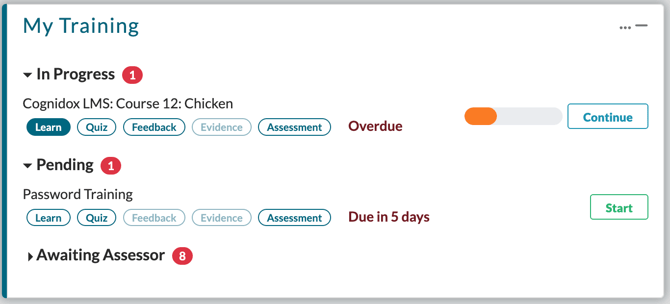
The Cognidox LMS (Learning Management System) is an integrated module that helps organizations:
-
Deliver structured training courses
-
Track user completion and progress
-
Assess understanding with quizzes
-
Gather feedback and evidence
-
Assign and monitor skill levels
It supports everything from simple read-and-confirm policies to complex, assessor-reviewed training programs with recurring requirements.
👤 Who uses the LMS?
The LMS is designed for different types of users, according to user role and assigned rights:
| LMS role | What you can do |
|---|---|
| Trainee | Take training, complete quizzes, upload evidence and feedback |
| Assessor | Review submitted evidence and mark quizzes |
| Manager | Create training versions, assign groups, view reports |
| Admin | Set up the LMS, configure roles, manage all LMS content |
| Reporter | View training or skills reports for specific users/groups |
🧩 LMS Components
The LMS is made up of several key elements:
| Term | What it is | Who uses it |
|---|---|---|
| Training Requirement | A reusable course definition, assigned to user groups (see note below) | LMS Admins, LMS Managers |
| Training Requirement Version | A versioned set of training materials, settings, and optionally a linked quiz | LMS Admins, LMS Managers |
| Quiz | A collection of questions to assess understanding | LMS Admins, LMS Managers |
| Quiz Version | A specific version of a quiz, linked to a training requirement version | LMS Admins, LMS Managers |
| User Group | A set of users who share training assignments | LMS Admins |
| Role Group | Defines what functions a user can perform in Cognidox, including which LMS functions are accessible (e.g. Trainee, Assessor) | Cognidox Admins |
| Skill | A named group of training requirements, used for broader tracking | LMS Admins, LMS Managers |
| Training Objective | A mapping of training requirements to skill levels (e.g. Aware, Competent) | LMS Admins, LMS Managers |
| Assessment | A review process for free-text answers or uploaded evidence | LMS Assessors |
| My Training (Portlet) | Shows each user's assigned and in-progress training | LMS Trainees |
| Training Assessments (Portlet) | Lists training submissions awaiting review | LMS Assessors |
| Training Reports (Portlet) | Allows viewing of progress by user, group, or requirement | LMS Managers, LMS Reporters, LMS Admins |
Why are trainees assigned via user groups?
From a long-term management perspective, users have to do training based on their organisational role, and the role can be encapsulated by a user group. When people change roles within an organisation, it much clearer and simpler to ensure they're assigned to the correct user groups rather than hunting through training requirements. It may lead to some user groups having just one user, but that's OK.
🔁 The Typical Setup Flow
If you're setting up new training from scratch, the recommended order is:
-
Identify your user groups – Who needs to complete the training?
-
Choose your training materials – Ensure documents videos, and external links, will be accessible by trainees
-
Create a quiz – Based on the materials (if required)
-
Create a training requirement – Defines the target audience and purpose
-
Create a training requirement version – Add materials and link the quiz version
-
Activate the version – Only one version can be active at a time
🔄 If you’re updating existing training, clone the current version. This automatically creates a new quiz version too — which can then be edited without affecting past completions.
🧭 What happens next?
That depends on your role. For example:
-
Trainees can visit the My Training portlet to start their assigned training.
-
Assessors will see pending assessments in the Training Assessments portlet. They can pass or fail trainees, and supply suporting evidence and feedback if required.
- Reporters can check up on progress, and identify gaps in individual training and company-wide skills.
All of these steps are explained in detail in the rest of this LMS article series. See the list below.
📚 What’s Covered in this Series?
Here's a list of the articles in the LMS series. They are presented in a logical order so you can become familiar with the principles of using the Cognidox LMS. However, feel free to jump in at any point in the series and find your way around.
- Enabling the LMS plugin
- Assigning LMS Permissions via Role Groups
- Creating LMS User Groups
- Creating and Managing LMS Quizzes
- Creating LMS Training Requirements
- LMS Training Requirement Versions, Learning Materials, and Quizzes
- Updating LMS Training by Cloning Requirement Versions
- Completing an LMS Training Course as a Trainee
- Using LMS Skills, Levels, and Objectives to Track Competency
- Performing LMS Assessments
- Reporting on LMS Training Skills