
🎬 Watch the video
📝 Overview
When you need to update an existing training course — for example, to add new material, or change the quiz — you should clone the current version rather than edit it directly.
Cloning reates a new training requirement version that you can safely modify, while the existing version remains active for users still completing it.
Note: If the existing version includes a quiz, a new quiz version is created automatically when you clone the training requirement.
🔁 Why Clone a Version?
Cloning allows you to:
-
Preserve historical training data
-
Avoid disrupting active users
-
Work on updates before publishing
-
Control exactly when changes go live
Only one version of a training requirement can be active at a time, but you can keep multiple versions for reference or future reuse.
🛠 How to Clone and Update a Training Requirement Version
-
In your My Training portlet, click More (⋯) → Manage the Learning Management System → Training Requirements
-
View the training requirement you want to update
-
In the Requirement Versions list, click Clone next to the current version
-
Confirm the action when prompted
-
A new version is created — it will not be active yet
-
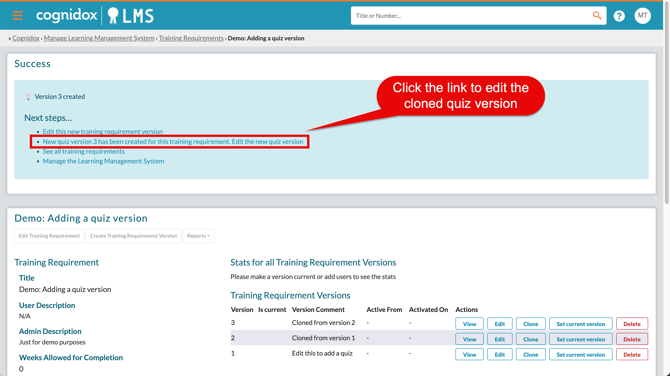
If a quiz is linked to the training requirement version, a new quiz version is also created automatically.
✏️ Editing the Cloned Version
After cloning:
-
Edit the new training requirement version
-
Make any changes you need:
-
Add or remove training materials
-
Update help text or instructions
-
Change assessors
-
Link a different quiz / version, or edit the newly-cloned quiz version (click the link in the blue help box)
-
-
-
Modify evidence upload settings
-
-
Click Save Requirement Version
-
You can continue editing until you're ready to activate
🚀 Activating the New Version
When your updates are complete:
-
Click Set Current Version on the new version
-
You’ll be prompted to choose how to handle existing training records:
-
Do nothing with existing training records for this training requirement
Any trainees who have to complete the current version of this training requirement, or who are currently completing the training requirement, will continue as normal. When their training record expires they'll have to complete the active version at the time of expiry. New users added to this training requirement will need to complete this new version. -
Invalidate any existing training records immediately
Any trainees who have to complete the current version of this training requirement, or who are currently completing the training requirement, will have their training records invalidated and will be informed they need to complete this new version. -
Set the expiry of the records to a specific date
Any trainees who have to complete the current version of this training requirement, or who are currently completing the training requirement, will have the expiry date of their current training records set to the date specified below. Once the records expire, they'll need to complete this new version.
-
✅ What Happens Next?
-
The new version becomes the active version
-
Trainees see it in their training dashboards
-
The previous version is retained for audit and history
-
You can clone again in future as your content evolves