
🎬 Watch the video
📝 Overview
Before you can begin creating training content or assigning users to courses, you must enable the LMS plugin. This is a one-time setup task for Cognidox administrators with the Manage plugins right.
Once enabled, LMS features (like training portlets, requirement setup, and quizzes) become available to users based on their assigned permissions.
🔧 How to enable the LMS plugin
-
Display the home page; from the main menu, go to:
Manage CogniDox → Settings and Configuration → Plugins
-
Locate the LMS Plugin in the list and click to open the configuration page.
-
Set Enabled to
Yes. -
Optionally, adjust the following settings:
-
Currency – Used for cost estimation reporting (e.g. GBP, EUR)
-
Validation mechanism – Choose between password or authenticator app for secure sign-off
- TTF Font Paths (not editable for hosted customers) – Provide a list of paths (one per line) that contain .ttf fonts that can be used for training certificates
-
Certificate template – You can:
-
Use the default template (just leave this field empty), or
-
Create your own custom training certificate templates by downloading the default version, editing and uploading to Cognidox, and entering part numbers in this field (full instructions are at the bottom of the configuration page, and in the online help)
-
-
Maximum evidence file size – Set the upload limit for user-submitted training evidence
-
Allowed evidence file types – Specify allowed formats (e.g.
.pdf,.docx,.xlsx)
-
-
Click Save Configuration.
Once saved, the LMS plugin is active across your Cognidox instance.
Enabling access to portlets
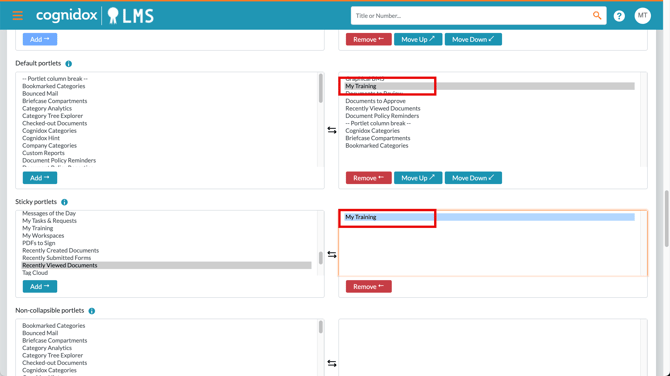
To make things easier for trainees, set things up so they will automatically be able to view their My Training portlet:
- Go to Manage Cognidox > Settings & Configuration > Workflow & System Settings.
- On the User Interface tab, set My Training in the Default portlets list. This will mean that all users who can take part in training will have the portlet (if they haven't already customised their home page).
- You can also set the Sticky portlets option, to enable the portlet on all trainees' home pages, regardless of whether they've customised their own home pages.
✅ What happens next?
With the plugin enabled, you can now:
-
Assign LMS-specific rights to users and role groups
- Ensure any training materials on your Cognidox server will be available to trainees
-
Set up user groups for training
-
Create your first quizzes and training requirements
-
Configure access to LMS portlets (automatically handled by role)
Continue to Assigning LMS Permissions and Role Groups.