
🎬 Watch the video
📝 Overview
You can attach quizzes to LMS training requirements to test users’ knowledge and reinforce learning. Quizzes are version-controlled and can include multiple-choice or free-text questions.
Each quiz may have one or more versions — it’s the quiz version that gets linked to a specific training requirement version.
🧪 What a Quiz Can Do
Cognidox LMS quizzes support:
-
Question pools – Show a random subset of questions
-
Pass criteria – Set the required number of correct answers
-
Attempt limits – Define how many tries are allowed
-
Version control – Clone and update questions over time
-
Free-text answers – An Assessor's decision to pass or fail the training record might be influenced by free-text questions from the quiz, or by other factors (e.g. they did not like the uploaded training evidence, or what the user wrote in a feedback field)
-
Hints and guidance – For both trainees and assessors
🛠 How to Create a Quiz
-
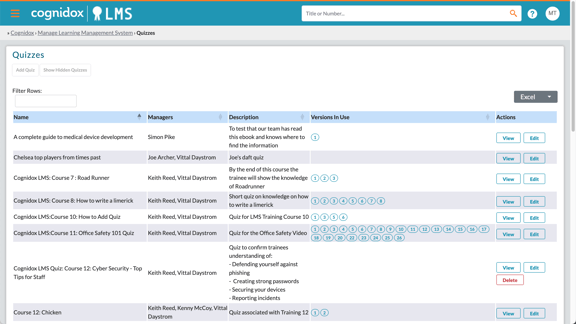
From the My Training portlet menu, go to Manage the Learning Management System > Quizzes
-
Click Add Quiz
-
Enter:
-
Quiz Name – Ideally similar to the related training requirement
-
Admin Description – Internal notes about the quiz content or use
-
Visible – Leave enabled (default), or toggle off to hide until ready
-
Quiz Managers – Assign users or groups who can edit the quiz
-
-
Click Save to create a quiz placeholder
-
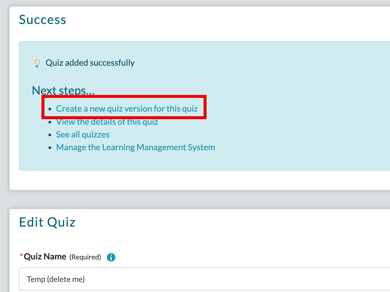
If you want to create a quiz version straight away, click Create a new version for this quiz in the Next Steps box at the top (otherwise see the next section, below).
✏️ Adding Quiz Versions
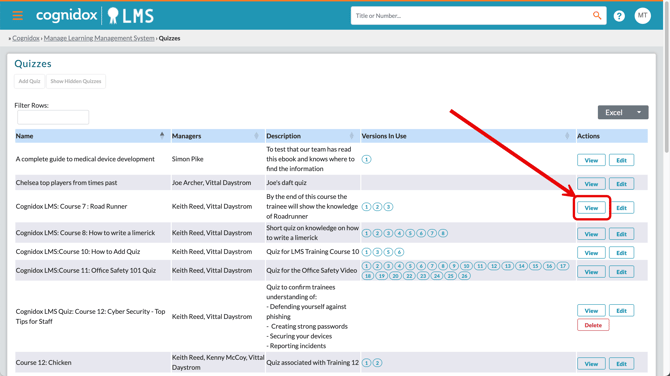
From the main Quizzes page:
-
Click to View a quiz.
-
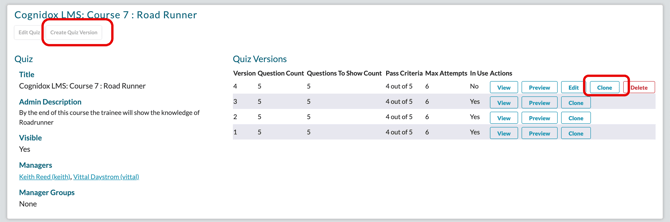
Click Create Quiz Version, or Clone an existing one.
- In the Add Question section, fill in the following:
- Question Title This is the name of the question or activity. It should be short and clearly describe the topic of focus.
- Trainee Instructions and Guidance Provide the trainee with instructions on how to answer the question
- Question Text Enter the question you want to ask the trainee
- Answer Placeholder For free text answers, this placeholder will be displayed in the answer field until the trainee starts to type their answer. This is ignored for multiple-choice questions
- Answers For multiple-choice questions, enter answers on separate lines; use an asterisk "*" to mark the correct answer, or answers; leave the field empty for free text questions
⚠️ Avoid trailing spaces or blank lines after the answer list — these may create unintended options.
- Assessor Guide (required for free-text questions) Provide guidance on how to mark the answer.
- Click Add Question to save.
- Repeat to build your quiz by adding more questions.
- Set the number of Questions To Show. Leave blank to show all questions; enter a number to show a random selection of questions from the pool. The selection will change on each allowed attempt (see below).
- Set the Pass Criteria (the number of questions that must be answered correctly).
- Set the number of Allowed Attempts in case of failure. If blank, or zero, there is no limit.
- When finished, click Save Quiz Version.
🧠 About Quiz Versions
Quiz versions are immutable once linked to an active training requirement. You can:
-
Create new quiz versions to reflect updated content
-
Edit or delete quiz versions only if they are not in active use
-
Link only one quiz version per training requirement version
📎 Linking a Quiz to a Training Requirement
Quizzes are not linked from the quiz manager. To link a quiz version:
-
Edit a training requirement version (you can only edit a version that is not currently active)
-
Go to the Quizzes section
-
Select a quiz, then choose from available versions that are not already in use
-
Save the training requirement version
🔄 Quiz Versions and Training Requirement Versions
When you link a quiz to a training requirement version, you're associating a specific version of that quiz. Quizzes and training requirements are versioned independently.
What happens when you update a training requirement?
If you clone an existing training requirement version that already has a quiz:
-
Cognidox automatically clones the linked quiz version
-
A link to the new quiz version appears in the training requirement version details
-
You can safely edit the new quiz version before activating the training requirement version
-
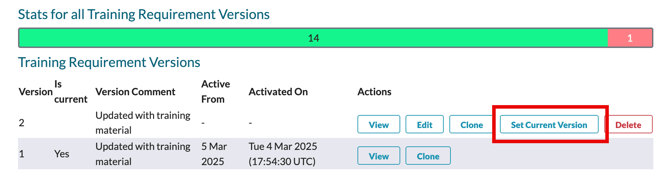
If you set the new training requirement version as current version, you will be prompted to specify what happens to existing training records (three possibilities).
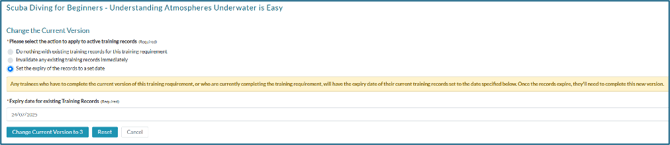
⚠️ Quiz versions already linked to training versions cannot be reused or edited — this protects the integrity of completed training.
What happens if you edit or clone a quiz version?
-
Editing a quiz before it is linked has no effect elsewhere
-
If you clone and update a quiz version, you will need to manually link it in the relevant training requirement version.
Note: this is different from cloning a training requirement version—in that case, a new clone of a linked quiz version gets created automatically.
See Updating LMS Training by Cloning. - You can only change quiz versions that are not linked to training requirement versions, or are linked to training requirement versions which have not yet been made current
⚠️ Always double-check which version is linked, especially when cloning or editing existing quizzes.
🛠️ Managing Existing Quizzes
From the Quizzes page, you can:
-
View or edit quiz details
-
Add or manage quiz versions
-
Delete quizzes (if not linked)
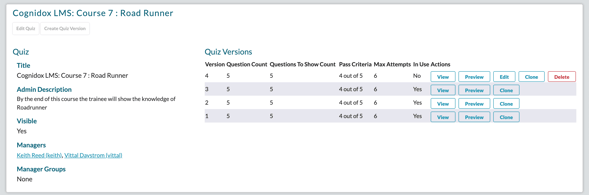
For each quiz version, you can:
-
Edit or delete it (if unused)
- Preview it
-
View how many training versions it is linked to
-
Clone it to use as a starting point for new content
✅ What Happens Next?
-
Users will see the quiz as part of their training workflow
-
If showing a subset of questions, different questions may appear randomly on each attempt
-
Assessors will review free-text answers, if applicable, when they assess the training record
📝 Summary
-
Create quizzes before building training requirement versions
-
Quiz versions are automatically cloned when training requirements are cloned
-
Only unused quiz versions can be edited or relinked
-
Always verify which version is currently linked