
In this article, we'll give an overview of how forms work in Cognidox. Other articles go deeper into the details.
Videos in this article

- A quick overview of forms in action
Tip: Cognidox Quality Modules (such as CAPA, CALs, ECRs and so on) are basically custom forms.
What's in this article?
This article contains the following information:
- What is a Cognidox form?
- A quick overview
- How does the process work?
- Who can create, manage, and fill in forms?
See this help topic for more details.
What is a Cognidox form?
Cognidox forms provide a way to capture data entered by users in a Cognidox document. This is particularly useful when working with Cognidox Quality modules (e.g. CAPAs, NCRs and ECRs).
Benefits of using Cognidox forms:
- Capture data in a standard way
- Easily create new with minimal intervention.
- No third-party tools needed; data capture within the browser
- Control format of data output
- Cognidox functionality (reviews and approvals) available
- Use advanced search and custom reports to report on form data
- Use Cognidox access controls to manage who can add, update and view form data.
Form definition
A form definition consists of the following:
- A name. This is how the form is identified on the Manage Forms page.
- User input fields (such as Checkbox, Number, Date, Selector) each with their own defining parameters. When a user selects a form to fill in, they will be presented with these fields.
- (Optional) A link to a Cognidox form template (see note below). Without one of these, Cognidox will generate a default PDF preview of the form data. The form template contains MailMerge fields which can show form data, and information about the form document itself, such as part number and version.
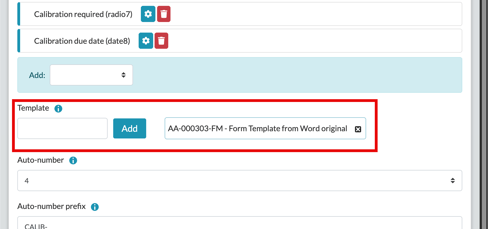
- (Optional, but recommended) Auto-numbering: When a user creates the first version of a form document, a new unique form number can be created if auto-numbering is enabled. The form number can be included in the document's title when you assign a form to a category; supplying unique prefixes and postfixes here in the underlying form definition makes it easy for you to identify and reference form documents.
- (Optional) As well as basic help text that is displayed directly on the form (in the "About this form" section), you can link to a separate Cognidox document (help file) to give users more detailed instructions.
- (Optional) A list of managers allowed to further edit the form after it's been created. Leaving this blank means anyone with sufficient access can edit the form.
A quick overview
The video below gives you an overview of a form in action. Other articles in the knowledge base go into the details of creating and managing forms.
How does the process work?
Here's a brief overview of creating and using forms:
- An administrator creates a form definition, adding fields, setting up auto-numbering, etc.
- (Optional) A manager or administrator creates a form template part number in Cognidox.
- Managers can subsequently edit the form definition, setting the part numbers of the form template document and help file, if not already in place.
- An admin or manager assigns the form to a category. The same form can be assigned to multiple categories, so part of the process involves specifying category-specific options such as:
- Form name: This is what users see when they select a form to fill in.
- Document title and type: Cognidox automatically creates a document number once a user completes the form; we recommend including variables such as $FORMNUM and $DATE to generate meaningful and unique titles. Such meta-data is also searchable when building custom reports.
Note: The document title may also include any auto-numbering specified in the form definition (this is what's picked up by the $FORMNUM variable).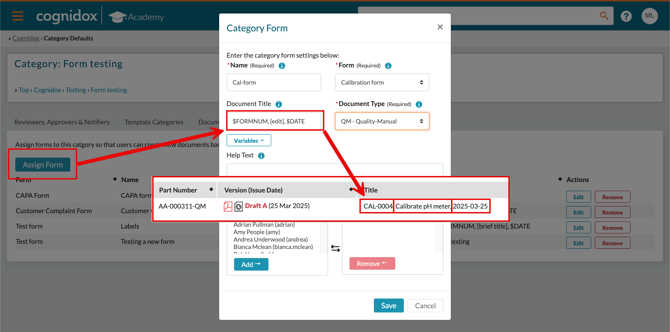
- A user fills in the form (partially or fully), by navigating to a category that has forms assigned, and selecting a form from a drop-down list. This will create a JSON machine-readable master file which contains the raw form data. This will then be sent off for PDF conversion (using the form template file if specified) to create a human-readable version.
- An instance of the form (a document number and draft version) is automatically generated; the user can send it for review, perhaps requesting other users to fill in their parts of the form. Users can add to a form or edit it by simply using the Add Draft or Add Issue options. There's a section on this in this article.
- Anyone can create a custom report on forms, based on existing saved searches.
Finding your way around the forms pages in Cognidox
There are several places to find things to do with forms in Cognidox:
- Manage Cognidox > Settings & Configuration > Forms
- This lists all the available form definitions
- Click a form's title, or click View, to see its Details page; from here, you can:
- Download the form definition as a JSON file, for importing into another server, for example
- Edit or Delete the form
- View the form template document details page.
- See all the form fields and template merge fields
- Click to navigate to categories that use the form, and documents created from the form
- Click a Template link to see the Document Details page for the associated form template
- Edit the form definition
- Category page: If the category has forms associated with it, you can:
- Click Manage Category Forms to display the Defaults tab (see below)
- Select a form to fill in from the drop-down list
- Category > Defaults > Forms tab: Lists existing forms associated with the category. You can:
- Assign an existing form to the category
- Edit or Delete a form association for this category
- Custom Reports portlet: This lists all available custom reports. You can:
- Download a spreadsheet of a report
- View the documents resulting from the saved search used to create the report
- Edit or remove a report
- Share the report with other users
- Create a new custom report
Who can create, manage, and fill in forms?
The rights you have assigned control how you work with forms. The default user role assignments are as follows:
| Administrator | Power user | Super User | Support Administrator | User | |
| Administer forms | Y | ||||
| Become the manager of a form | Y | Y | Y | Y | |
| Create and share custom reports | Y | Y | Y | Y | Y |
| Manage category form assignments | Y | Y | Y | Y | |
| Search forms | Y | Y | Y | Y | Y |
| Use forms | Y | Y | Y | Y | Y |