
Only a Cognidox administrator can create an initial form definition. They can then delegate form management to other users.
Videos in this article

What's in this article?
This article contains the following information:
- Creating a form definition
- Understanding form field labels and values
- Assigning a form to a category
See this help topic for more details.
Note: It's really important to use auto numbering when designing the form (e.g. an auto number of 3 will give you up to 999 forms) and variables (such as $FORMNUM and $DATE) in the Document Title, when assigning the form to a category. This ensures that unique and traceable documents are created every time a user fills in the form.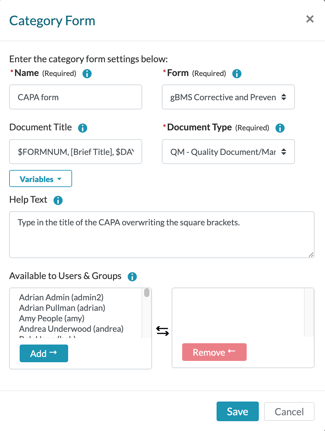
Creating a form definition
To create a form definition, you use the Cognidox Manage Forms page. This includes defining all the form fields, attaching a form template (creating these is covered in another article), providing user help, and assigning form Managers (who can subsequently edit the form).
Tip: Cognidox Quality Modules (CAPA, ECO, ECR, and so on) are driven by forms.
Watch the video
The video demonstrates the process of creating a form by showcasing an existing form as an example. It's not exhaustive, so feel free to check out the online help for detailed information on field types etc.
To create a form definition, and assign one or more managers:
- Display the homepage, choose Manage Cognidox, display the Settings & Configuration tab, and click on the Forms link.
This will display the list of forms (which you can filter, by All, Active, or Inactive). - Click Create Form.
- Enter a name for the form.
- Add some form fields. Check the online help for descriptions of all the field types.
There are two ways you can do this:- WYSYWIG mode (recommended for getting started): Use the Add drop-down menu to add different field type definitions.
- Advanced mode (use with care): Click Advanced Edit. You can now enter field definitions in JSON Schema format.
- At any stage, you can click Preview Form to see how your fields will appear to an end user.
- (Optional) Enter the Cognidox part number of a form template file. This can be added to the form definition later, if necessary.
Notes:- The form template must be accessible by users who need to fill in the form (for example, having the same security profile as the form's category)
- The form template must be an approved issue. You can have a draft version in review at the same time—it will only supersede the existing issue once approved.
- (Optional, but recommended) Set up auto-numbering for documents created from this form definition (e.g. an auto number of 3 will give you up to 999 forms, and you can add a prefix and a postfix). There's information on this help page; you can also click the blue help icons to see pop-up help.
- Set the status of the form: Active forms can be filled in by users; Inactive forms cannot be accessed, but documents submitted against them can be searched. use this when forms are no longer relevant to your organisation, but you still want to retain historical information.
- Add some help for users who are filling in the form. You can add text in the field, as well as optionally supplying the part number of an approved Cognidox document that can be displayed as a pop-up window. Again, this can be added later by a manager.
- Add any users that you want to be able to manage the form (e.g. add fields) after it has been created.
- Click Create Form.
Understanding labels in Cognidox form fields
Each form field has a top-level label that tells users what information to enter (e.g., "Equipment ID" or "Priority Level"). This is the name of the field.
When designing a "Select" field (such as a dropdown list), each value (the raw value of the data) in the list can also have its own value-level label (the human-readable value). By default, the label for each value will be the same as the value itself. However, you can create custom labels to make the options more meaningful.
An example showing where different values and labels is important is shown below.
Suppose you have two laboratories, Lab 1 and Lab 2:
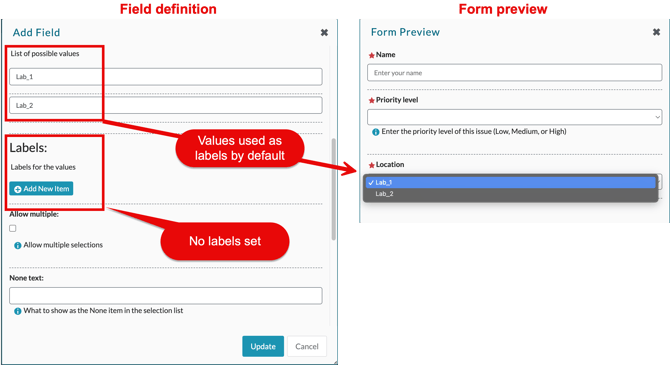
- You might assign the values in a select field as Lab_1 and Lab_2. At this point, you could leave the labels in the Select field definition blank, and the user would see Lab_1 and Lab_2 in the drop-down list.
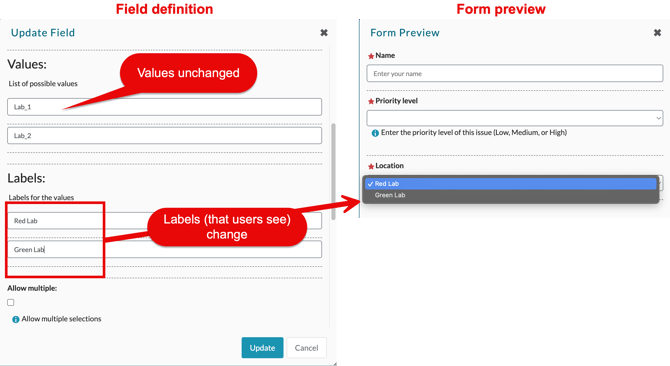
- If you subsequently change the names on the doors of the labs, say to Red Lab and Green Lab, you would leave the underlying values in the field definition as Lab_1 and Lab_2, but change the labels to Red Lab and Green Lab. That way, users know what you're talking about when they fill in the form, but you retain the data integrity of all previously-generated form documents. (If you change the values as well, previous form data becomes redundant.)
Assigning a form to a category
Once you have created a form definition, you need to assign it to a category so that users can fill it in.
Note: As part of this process, you can include some category-specific details, such as Document Title, and some brief help text. Because this functionality is available from any category, you can assign the same form to different categories, and customise the document creation details accordingly.
Watch the video
Check out the video, then read through the summary below.
- Navigate to the category where the form will be used and click Defaults.
- Display the Forms tab and click Assign Form.
- Fill in the details:
- Name: Enter the text you want users to see in the drop-down list when they select a form to fill in.
- Form: Use the drop-down list to select an existing form definition.
- Document Title: Cognidox automatically creates a document number once a user completes the first version of the form; we recommend including variables such as $FORMNUM and $DATE to generate meaningful and unique titles. Such meta-data is also searchable when building custom reports.
- Document Type: This is the document type of the Cognidox documents that is generated (for example QM for a Quality form)
- Category-specific Help Text (displayed to users filling in the form)
- Who can fill in the form (Users and Groups). If you leave this blank, everyone will be able to use the form if they have Use Form rights.
- Click Save.
Tip: You can use the same form for different categories, by editing the category-specific settings on the Defaults > Forms tab.
Useful online help topics
See the following help pages: