
Custom Reports in Cognidox allow you to generate tailored reports by combining saved search results. This guide will walk you through creating saved searches (with emphasis on Form data), building a custom report, and sharing or editing it. You can follow the steps below or watch the video for a full walkthrough.
Note: Before you can create a custom report, there must be one or more saved searches in place, as the report works by collating fields from a list of documents.
Watch the video
To Create a Custom Report
-
Create Saved Searches (If Needed):
- Use the Advanced Search feature to create one or more saved searches that filter documents, including Forms and Form fields, that you want in your report.
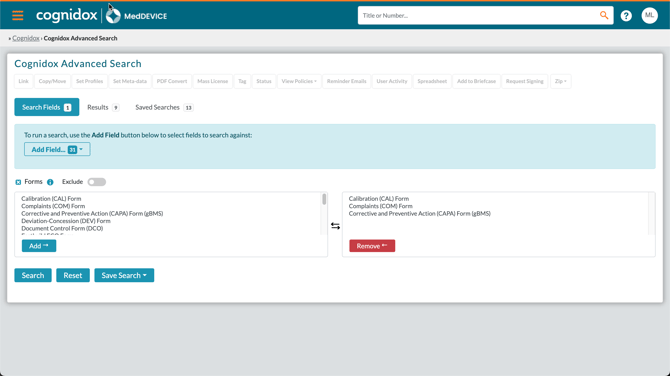
- Use the Advanced Search feature to create one or more saved searches that filter documents, including Forms and Form fields, that you want in your report.
-
Open the Custom Reports Portlet:
- Display your homepage and ensure the Custom Reports portlet is visible. (If it’s not visible, enable it from your Account menu.)
-
Add a New Report:
- Click the three dots at the top right of the portlet and choose Add Report from the pop-up menu.
- Enter a name for the report.
-
Select Fields to Include:
- In the Select the fields to appear in the spreadsheet report section, hover over the Form > entry to see available form fields.
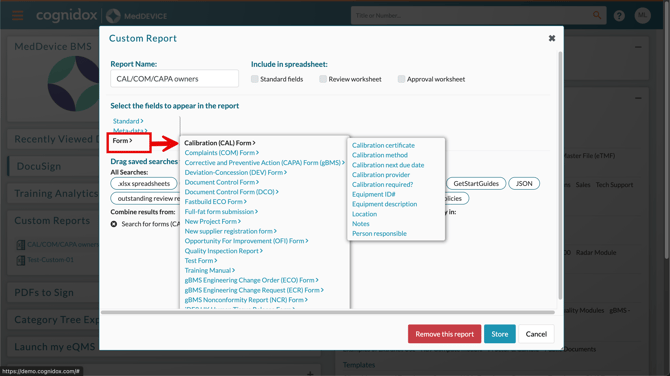
Note: Form data will come from the latest versions of the form documents.
Fields you select here will only be available in the spreadsheet version of the report. The online version only shows standard Cognidox search results (e.g. Document part number, version). - Click on any fields you want to add to the report. You can reorder or remove fields by dragging or clicking the delete icon.
- In the Select the fields to appear in the spreadsheet report section, hover over the Form > entry to see available form fields.
-
Add Saved Searches to the Report:
- Drag and drop saved searches from the All searches section into the appropriate columns:
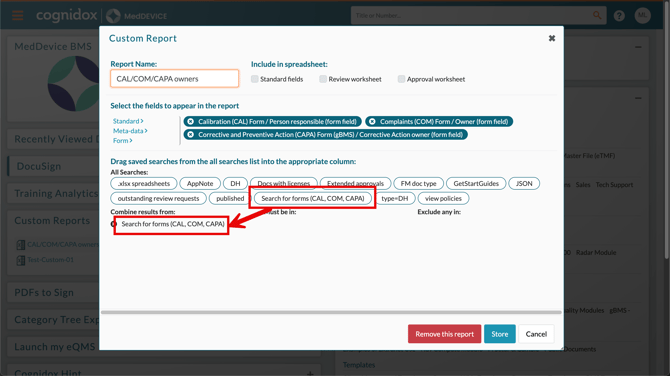
- Combine results from: Includes documents from all searches in this column.
- Must be in: Filters the report to documents that match all searches in this column.
- Exclude any in: Removes documents from searches placed here.
- Drag and drop saved searches from the All searches section into the appropriate columns:
-
Save the Report:
- Click Store to save the report.
Using the Custom Report
-
View the Report Results:
Click on the report name in the Custom Reports portlet to view the results in Cognidox’s Advanced Search window.
This displays standard Cognidox Search results (i.e. document titles, versions, etc).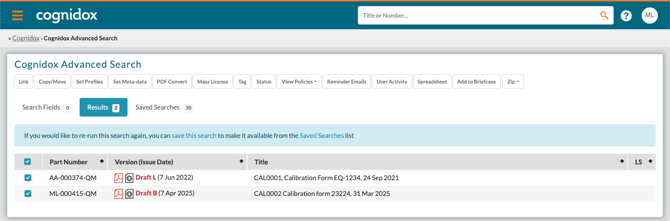
-
Download the Spreadsheet Version:
Click the Excel icon to download a spreadsheet containing the report results.
This includes any form fields you selected in the custom search.
-
Edit or Share the Report (If You Created It):
Hover over the report name to access the Edit or Share icons.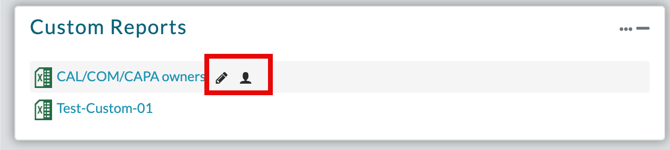
(Note: These options are only available if you created the report. If it was shared with you, you’ll need to contact the report owner for any changes.)- Edit:
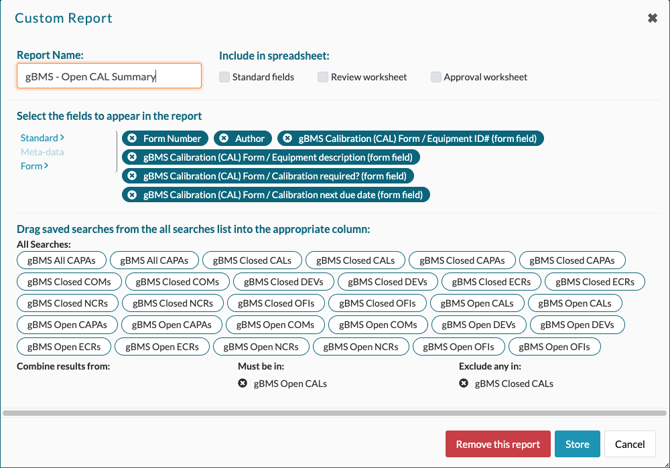
- Edit:
- Change ownership:
You might want to do this if you're handing over a project to another user.- Hover over the report name to access the Share icon and click the Share option to display the Custom Report Sharing dialog.
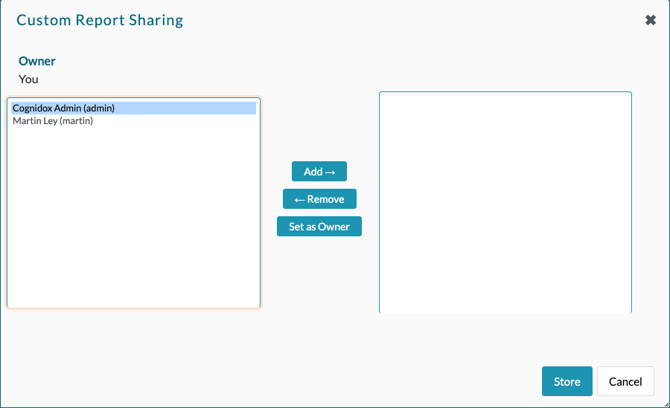
- Select a name in the lefthand panel (don't double-click, or click Add) and click Set as Owner.
- Important!! If you still want to be able to view the report after the ownership change, add yourself to the righthand panel. If you don't do this, you will lose access in the next step.
- Click Store. Any change of ownership will happen immediately. If you set someone else as owner and didn't add yourself, you will be locked out from access to the report. If you decide you do need access, ask the new owner to share the report back with you.
- Hover over the report name to access the Share icon and click the Share option to display the Custom Report Sharing dialog.
See Using custom reports.
Summary
By following these steps, you can create saved searches, build Custom Reports, and share them with your team in Cognidox. This helps streamline data management and improve insights from captured Form data.
For a full walkthrough, be sure to watch the video at the top of this article. And if you need more help, check out our other Cognidox knowledge base articles.