
Use case 1: You've designed a Cognidox form, and you want the output to look professional, and follow your company style. As well as including user data from the form, you want headers and footers that have standard Cognidox document information (title, version, etc), and perhaps a company logo.
Use case 2: You have an existing Word document (not managed by Cognidox) that's used as a form, and you want to take advantage of Cognidox's form features (auto-numbering, version control, custom reporting, and so on).
Solution: In both cases, a Word file (.docx) acts as a Cognidox form template, converting the raw form data into a nicely formatted PDF. The only difference is in the order of doing things.
In this article, we deal with use case 1.
Videos in this article

What you'll learn
- How to display a View Form page and locate the Cognidox field IDs needed for your form template.
- How to copy the field IDs and paste them into a form template, using Word's MergeField functionality.
- How to upload the template and get it approved.
- How to link to the form template from the Cognidox Edit Form page.
- Troubleshooting
Important: Your form template will only be used to generate a PDF if it is an approved issue in Cognidox.
Watch the video
1: View the Cognidox form details and locate field names
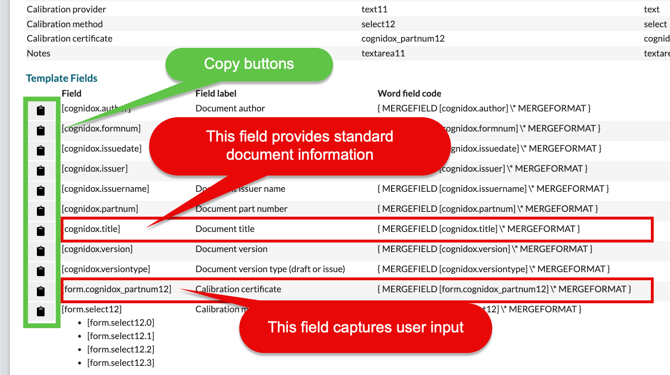
When you design a Cognidox form, each field that you add can capture an item of user input (such as a date, some text, or an item from a drop-down list). Each form field has its own ID (like [form.text1]) which, when included in a form template, will display that item of user data. These IDs are listed on the View Form page.
In addition, there is another type of field, which automatically picks up standard Cognidox document elements, such as part number, title, author, and so on. These fields do not require user input, and do not appear on the Edit Form page, but their IDs (like [cognidox.title]) are also available for inclusion in a form template, for example in headers and footers, and also appear on the View Form page.
- Navigate to Manage Cognidox > Settings & Configuration > Forms and click View for the form you're interested in to display the form's details.
- Locate the field codes, as well as the copy buttons that will enable you to paste them into a Word file.
2: Merge field IDs into your Word file
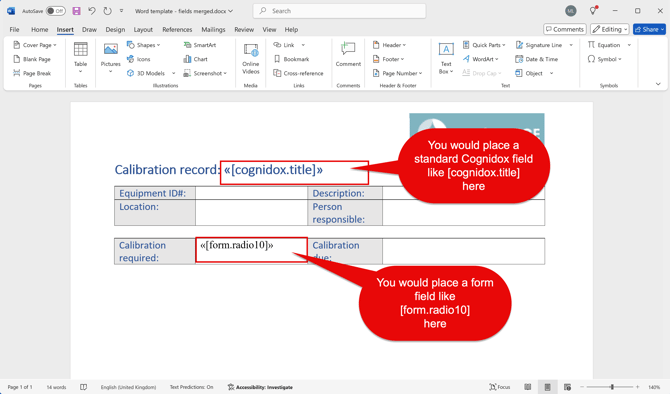
Let's assume you already have a local Word file that you want to use as a form template. In that Word file, there will be some places you want to paste standard Cognidox document fields that don't require user input (such as [cognidox.title]), and some places where you want to paste form-specific fields (such as [form.radio10]) to display user input.
- Open the Word file in Word.
- On the Cognidox View Form page, click the Copy button
 next to a field to copy the Word field code corresponding to the Cognidox field ID.
 - Paste the Word field code into the appropriate place in the Word file as follows:
- Windows:
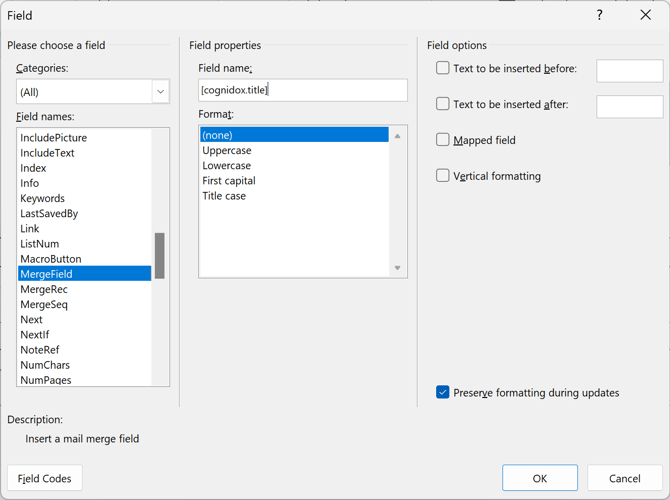
- Open the Field dialog using Insert > Quick Parts > Field.
- Select MergeField in the list of Field names in the Categories panel.
- Paste the copied Word field code in the Field Properties > Field name box:
- Click OK.
- Mac OS:
- Open the Field dialog using Insert > Field.
- Select Mail Merge from the Categories list.
- Select MergeField in the list of Field names.
- Paste the copied Word field code in the Field codes box.
Note: Paste it after the word MERGEFIELD, and make sure it is in double quotes: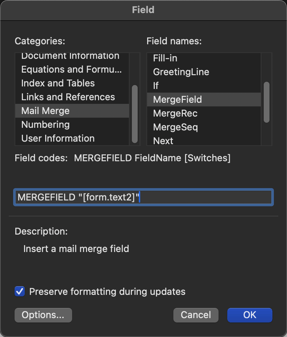
- Click OK.
- Windows:
- Save the local Word file.
Our example looks like this:
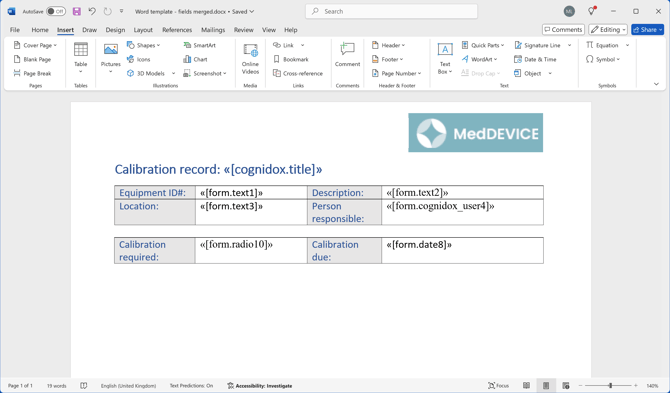
3: Upload the Word file to Cognidox
- In a separate tab, create a document number in the Cognidox category where you want to store the form template.
- Use standard Cognidox methods to upload the Word file, have it reviewed, issued, and approved.
Important:
- You should not place the form template in a Cognidox template category (since it is not a template in this sense), but it should be accessible by anyone who needs to fill in the associated form. For example, you can achieve this using security profiles.
- The form template will not be available to convert your form output until it is an approved issue.
4: Link the form template to the Cognidox form
-
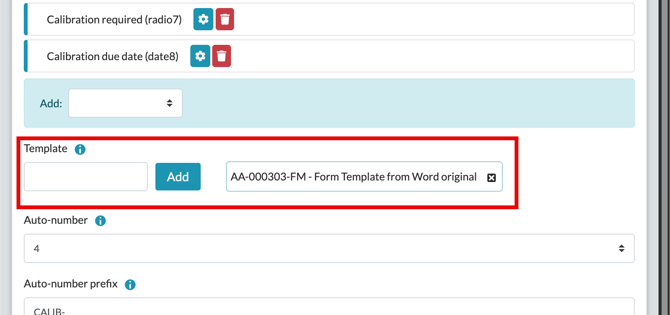
Edit the form.
- If the View Form page is open, you can click Edit at the top of the page.
- Specify the document part number for your form template, and click Edit Form to save.
What happens next?
When users open a category with assigned forms, they simply:
-
Select the form from the drop-down list.
-
Fill in the form fields and click Add Draft or Add Issue.
- If the form template is in place, as an approved issue, the PDF preview of the document created will be properly formatted.
Troubleshooting and FAQs
Why doesn't my form template work?
If users fill in the form but no PDF preview is generated, or the PDF preview doesn't reflect your desired layout, check the following:
-
Template Linking: Ensure the document part number for the form template is specified in the Cognidox form definition.
-
Merged Fields: Verify that form field definitions have been correctly merged into the Word file. Use the Preview Form button on the Edit Form page to see how the form appears to users.
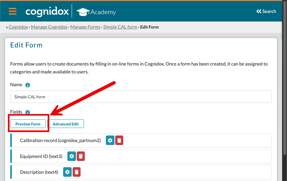
- Other merged field code issues: Sometimes it's easy to make mistakes pasting in Word field codes. You can check for errors by using Select All and toggling field codes on and off to look for any possible errors.
-
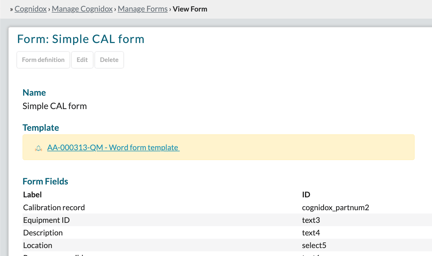
Approval Status: Ensure the form template is an approved issue. If you display the View Form page and the Template listed at the top is highlighted in yellow, it is an unapproved version. Hover the pointer over the yellow alert box to see what the issue is. (This can be an advantage; if a previous approved issue exists, you can review the latest unapproved version, and it will only supersede the approved version once it is itself approved.)
- Access Issues: If the PDF preview of the Form isn't being generated it could be that the Template is in a different Private Workspace.
- I've updated my form template and approved it, but my existing form documents haven't updated. Cognidox, by default, doesn't update existing documents. Do one of the following:
- Resubmit the existing documents for PDF conversion (using the PDF Options action on the Document Details page; see this help page). The existing version will be converted using the new form template.
-
- Add a new version of the form document. The new version will be converted using the new form template.
Other articles in this series
- Forms: An Overview
- How to design a Cognidox form and assign it to a category
- Filling in a form
- Creating a spreadsheet report from form data
- Importing and exporting form definitions