
Once a form definition has been created, and it has been assigned to a category, users can easily fill in the form. For example, Cognidox Quality Modules (such as ECR, CAPA and so on) are driven by forms.
Videos in this article

What's in this article?
How to start filling in a form
This section explains how to select a form on a category page and start filling it in, creating the first version of a form document.
See below if you want to add a new version of an existing form document.
Watch the video
The video below explains how to begin filling in a form.
- Navigate to the category that has the form assigned.
- Scroll down to the Forms section, click the drop-down list, and select a form.
- Fill in the fields.
- Remember: You need to modify the Document title field to reflect the exact reason you're filling in the form. Leave any variables (such as $FORMNUM) in place, but edit the existing text string (which will often have been put in square brackets) to suit your needs.
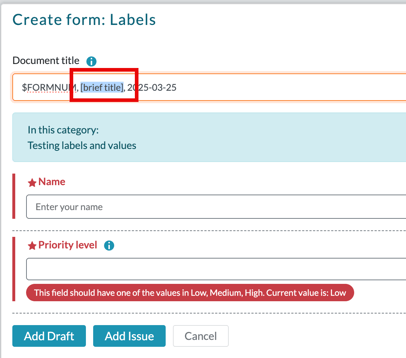
- The form will often include some help text if it has been well designed.
Fields marked with a star are mandatory.
- Remember: You need to modify the Document title field to reflect the exact reason you're filling in the form. Leave any variables (such as $FORMNUM) in place, but edit the existing text string (which will often have been put in square brackets) to suit your needs.
- At this point, you have a choice as to how you submit the form:
- Click Add Draft if you haven't finished entering the form details but want to save the current state. (You don't necessarily have to fill in all the fields yourself: You can assign someone else to review/complete – see below for instructions).
- Click Add Issue if you've completed the form details.
- On the next page, complete the standard Cognidox document submission details (such as Version Information and Comment) and click Add Draft or Add Issue to create the new document (this is not specific to Forms).
What happens next?
-
A new form document will be created in the category.
-
It will have a new Cognidox part number.
-
It will have an auto-generated document title.
-
It may have a form number associated with it, if auto-numbering was set up in the form definition.
What to do after you've submitted a form?
Now you've submitted a form. Because the form is a Cognidox document, you have the following choices:
- If it's an issue, send it for approval
- Use review functionality, you collate comments and update the form yourself
- If someone else now needs to add the next version of the form, use the notification feature to ask them to add the next version of the form (see below).
Updating (continuing) a partially completed form: Adding a draft or issue
If you or someone else has partially filled in a form, you (as the creator of the form document) or another user with rights to the form can continue to edit the form by adding a new version.
Note: Instead of the method for filling in a form from scratch (where you select it in the Forms drop-down menu on the category page), the way you do this is by adding a draft or issue from the form document's Details page.
Watch the video
To update the form data as a new version:
- Navigate to the form's Document Details page (either from the category, or by using the search feature).
- Click Add Draft or Add Issue.
This will display the Update Form page, with the form data ready to be updated. - Fill in as many fields as you can and click Add Draft or Add Issue at the bottom of the form.