
🎬 Watch the video
📝 Overview
Once an LMS administrator has created a training requirement, a suitably privileged LMS Manager can build out the actual course by adding one or more training requirement versions. Each version can include:
-
Training materials (documents, videos, and external links)
-
A quiz version
-
Evidence requirements (along with help text for the trainee and/or assessor)
-
Assessors (if the training must be reviewed). Note that it's good practise to assign multiple assessors, to avoid 'orphaned' training requirements if an assessor leaves your company.
-
Completion and authentication settings
Tip: It is good practise to create your quizzes and gather your training materials in advance. However, until a training requirement version is active, you can still edit it. This means that you can start creating a training requirement version before having training materials and quizzes available, if necessary, then come back and add them before making the version active. It just depends how you like to work!
📚 What is a training requirement version?
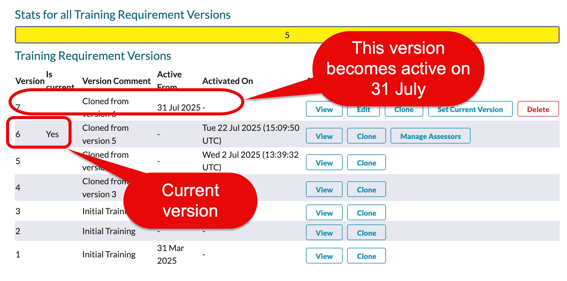
A version defines the active content of a training course. You can have:
-
Only one active version at a time
-
Multiple historical versions (for audit or recordkeeping)
-
Future versions ready to activate later (e.g. when a policy changes)
🛠 How to create a requirement version
-
From the My Training portlet menu, choose Manage the Learning Management System → Training Requirements.
-
Click View next to the entry for which you want to create a version.
-
Click Create Training Requirement Version.
-
Fill in version-specific details:
-
Active From – Optional: schedule the training to start on a future date
-
Version Comment – Describe what’s different in this version
-
Help Text – Appears at the top of the trainee’s course page
-
Authentication and evidence requirements (Trainees and Assessors) – Specify whether a password or authenticator code is required on submission
-
Assessors – If required, assign individuals or groups. Best practise is to ssign at least two; if assessors leave your company, you still want a training requirement to be assessed.
-
📎 Adding training material
Each version can contain one or more training materials:
-
Click Add Material
-
Enter:
-
Part Number – Link to an existing document or video in Cognidox
-
Version – Use the latest approved version or a specific revision
-
Help Text – Appears under the training item in the trainee view
-
Estimated Duration – How long the item should take
-
Approximate Cost – (Optional) Used for internal reporting
-
-
Click Add Material again to include more documents/videos.
🧠 Tip: If you use the approved version option, any future update to that document will automatically trigger retraining.
✍️ Adding a quiz/version, and requesting evidence
If an LMS Administrator has already created a suitable quiz, and an LMS manager has created a suitable quiz version, fill in the relevant fields:
-
Quiz: Select an existing quiz from the drop-down list, or add one later (see Creating and Managing Quizzes).
(You can also click a link to create a quiz directly from this page; if you do, the quiz form opens in another window — you'll need to refresh the Training Requirement Version form once you've done this.) -
Evidence from Trainee: Add instructions for what the user must upload (e.g. a worksheet).
-
Evidence from Assessor: If assessors must also upload a file (e.g. annotated feedback), describe it here.
-
Assessment Help Texts: Use these to guide both trainees and assessors.
🧪 Activating the version
When ready, click Set Current Version to make this version active.
If this replaces a previous version, you'll be asked whether to:
-
Invalidate existing completions (force users to redo the training)
-
Keep previous records as valid
🔁 Cloning versions for future updates
Note: We're just including this here for information - this can be confusing, so be sure to check out the article on Cloning Training Requirement Versions, to acquaint yourself with the effects of cloning on quiz versions.
To revise a course without disrupting current users:
-
Click Clone on the current version.
-
Edit the new version as needed.
-
Save and activate when ready.
This preserves training records and allows you to update content safely.
✅ What happens next?
Your training requirement is now ready for use. Assigned users will see it in their My Training portlet once the version is active.
Continue to: