
🎬 Watch the video
📝 Overview
If you've been assigned training in Cognidox, you’ll find it in your My Training portlet. A course might involve reading documents, watching videos, taking a quiz, submitting evidence, or all of the above.
This article explains how to work through a training requirement from start to finish.
📍 Step 1: Go to your training
-
Open the My Training portlet on your Cognidox homepage.
(If the portlet isn't visible, enable it by dispalying your LMS home page, going to My Account > Manage Portlets.) -
You’ll see a list of:
-
In Progress courses you’ve started but not finished
- Pending courses you haven’t started
-
Awaiting Assessor courses that still need to be marked
-
-
Click on Start or Continue next to an active course to open it.
(You can click Status next to a completed course that's awaiting assessment.)
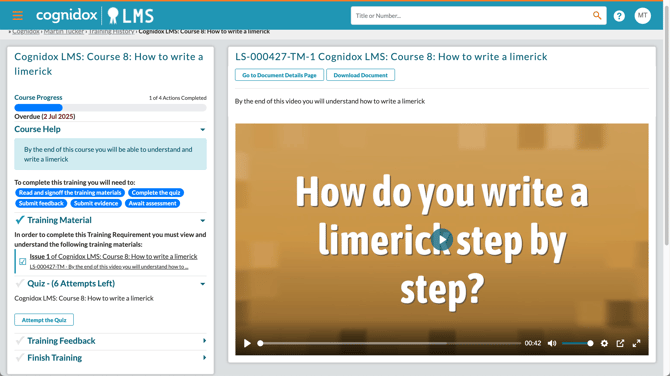
📖 Step 2: Complete the training material
Each course may contain one or more training items:
-
Documents
-
Videos
-
External links
For each item:
-
Click to view or open it — it will be displayed in the preview panel on the right
-
Read/watch the training materials carefully; you also have the following options if the document is stored on Cognidox:
- Go to Document Details Page
- Download Document so you can read offline
-
When finished, click Viewed and Understood
(You must do this for each training item) - Click Confirm
Tips
- You can use the Personal Notes section at the bottom of the training window to remind yourself of important points as you go along. Click Save Notes periodically.
- If you want to see one of the items again, you can expand the Training Materials section and click to load it into the preview panel on the right
As you complete each item in the list, your progress bar will update.
❓ Step 3: Take the quiz (if required)
If a quiz is included:
-
Click Attempt the Quiz
-
For each question, select or enter your answer and click Answer Question #
Questions may be:-
Multiple choice (marked automatically)
-
Free text (potentially reviewed by an assessor)
-
- (Optional) The quiz will automatically move to the next question, but you can use the numbered buttons at the top to move between questions, and click the orange Finish button when you've reviewed your answers.
-
After reviewing your answers, click Finish Quiz
- You might be given the option to have more than one attempt
- Click Close Quiz
If only multiple choice is used and you pass immediately, the system will mark the training as complete (or move to the next step if evidence is required).
📎 Step 4: Submit feedback and evidence (if required)
Some courses ask you to:
-
Provide feedback about the training experience (don't forget to click Save Feedback)
-
Upload evidence,
You’ll see clear instructions and a file upload area. Submit the required file(s), then click Submit Training.
🔐 Step 5: Complete authentication (if required)
If the course requires authentication:
-
If your LMS administrator has enabled authentication, you’ll be asked to enter your Cognidox password or an Authenticator Code
-
Enter the requested information and click Submit to finalise submission
🧾 What happens after submission?
-
If you passed, and no assessor is required:
✅ You’ll see your training in the Current records section of your Training History -
If an assessor is required:
⏳ The course status changes to Pending Assessment
You’ll be notified once your training has been reviewed and passed (or rejected, if resubmission is needed).
You can view your training record and download a certificate (if configured) from your Training History.
✅ What happens next?
-
If your course is approved, it will disappear from your Pending list
-
You can always review your Training History from the My Training portlet men u
-
If retraining is scheduled (e.g. annually), you’ll receive a new notification when due
Continue to: