
Users can download templates from Cognidox and use them as the starting point for creating new documents.
Videos in this article

What's in this article?
This article contains the following information:
There are two ways to make template documents available in Cognidox:
- Add them to the Global template category.
- Add them to other assigned template categories. In addition, you can make any documents in the Global template category unavailable, and control how template categories are inherited or passed on.
Note:
To be available as a template, a document must fulfil the following requirements:
- It must be an approved issue.
- It should either have the "Is a template" flag enabled in its document type definition, which allows it to be offered as a template regardless of the target document type. By default, this flag is enabled for document type FM.
- Alternatively, it can be of the same document type (e.g. QM) as the document being created.
Important: Don't confuse this functionality with form templates. Those behave in a totally different way, and are specific to forms.
Setting the global template category
An administrator can specify one global category as the repository for templates that can be used to create new documents. These will be available on a company-wide basis.
It's possible to override this on a per-category basis, if needed. See this section.
Watch the video
To set the global template category, you need to be an administrator. Proceed as follows:
-
Display the homepage, choose Manage Cognidox, and display the Settings & Configuration tab.
-
Click on the Template Category link.
- Use the drop-down lists to select the category and click Set Global Template Category.
See this help topic.
Assigning category-specific templates
As we've learned, users can select template files from a drop-down list when creating new documents. Normally, the company-wide template files in the global template category appear in this drop-down list. For certain categories, you might want to make other template files (outside the global template category) available in the drop-down list, and potentially exclude company-wide templates from the list. You do this using a category's default settings.
Watch the video
To manage template categories:
- Browse to the category containing your documents, click Defaults and display the Template Categories tab.
- Choose a Template Category using the drop-down menus and click
 .
. - Repeat to add more template categories.
(You can remove a listed Template Category by clicking .)
.) -
If you don't want the templates in the global template category to be available in the drop-down list when creating new documents, enable the Override Global Templates option.
For more information, refer to Assigning template categories.
- Click on the appropriate check boxes to define the inheritance settings for the category, then click Assign Template Categories.
Settings for extra template categories
When assigning extra template categories, you have the option to configure some default settings:
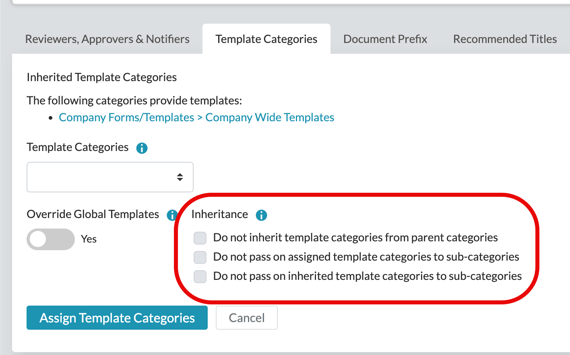
- If you enable Override Global Templates, documents in the global template category will not be offered as starting points for creating new documents. Users will only see any relevant templates in inherited template categories.
The inheritance settings are as follows:
-
Do not inherit template categories from parent categories: Enable this to prevent templates defined in parent categories from being inherited.
- Do not pass on assigned template categories to sub-categories: Enable this to prevent any templates assigned for the current category being passed on to its sub-categories.
- Do not pass on inherited template categories to sub-categories: Enable this to prevent any templates inherited by the current category from being passed on to sub-categories.
See the following help topics:
Notes: Creating a new document from a template
Just to round off this article, there are some things to bear in mind when trying to create a new document from a template…
Why do I not see the option to create a new document from a template?
You will not be given the option of creating a new document from a template in the following circumstances:
- If the document's category defaults are set to override the Global template category, and there are no suitable template files in any extra assigned template categories. This might be because:
- There are literally no template documents available
- None of the template documents has the "Is a template" flag set in its document type definition
- None of the template documents has the same document type as that of the document you are trying to create
- If the system workflow setting Always show the create from template action is disabled, you will not be given the option to create a new document from a template if a document version already exists.
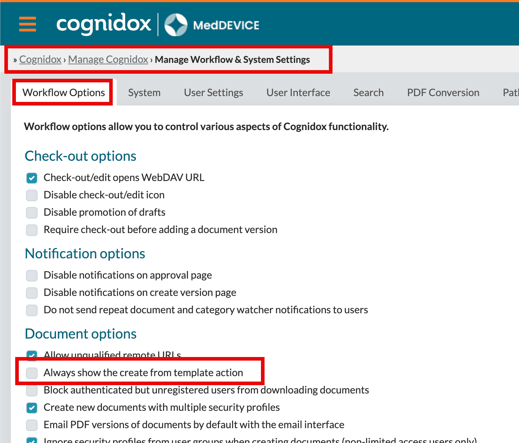
When am I offered the option of creating a document from a template?
Usually (see above for exceptions) you will see the option to create a new document from a template in the following circumstances:
- After creating a new document number
- From the main menu, when displaying a Document Details window (choose Add/Remove > Add a new document from a template)
- From the MS-Office add-ins (for example, see the help on the cross-platform add-in).