
This article walks you through the steps to link data from one Excel spreadsheet to another.
Videos in this article

- Example video showing how to link
- Prerequisites and instructions for SSO users
What's in this article?
This article contains the following information:
- Copy the URL for the source file and paste it into a local copy of the destination file (the one that will be updated automatically).
- Choose the data you want to link; it will be available as a new sheet in the destination file.
- Refresh the destination document to see the changes pulled in from the source.
- Prerequisites and SSO.
Watch an example video
Getting the URL for the source spreadsheet
To get started, you'll need the link to the source document, from where you want to pull in the data:
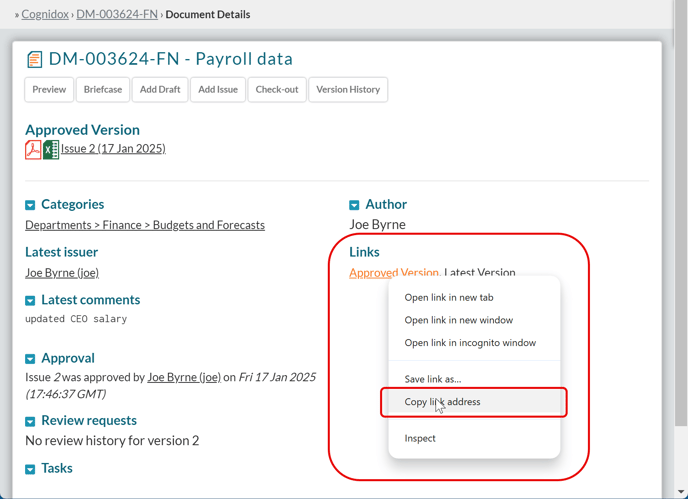
- Browse to the document’s Details page.
- In the Links section, right-click the Latest Version or Approved Version links and copy the URL.
Linking to the document in Excel (Windows only)
- Open the spreadsheet you want to pull data into.
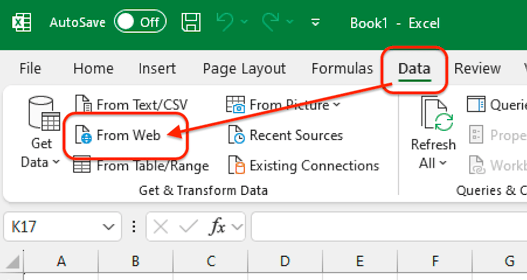
- Choose Data > From Web.
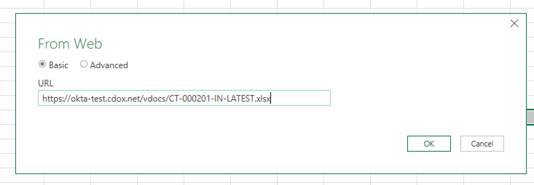
- Paste the URL for the spreadsheet into the dialog.
- In the Access Web Content dialog, choose Basic and enter username and password:
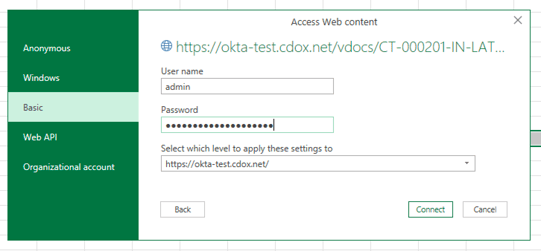
- Click Connect.
- Choose the data you’re interested in from the Navigator window:
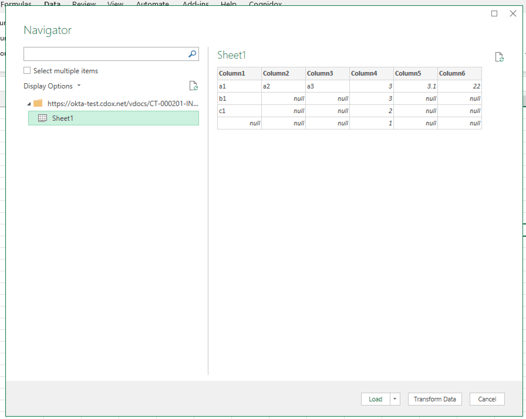
- Click Load to load it into a worksheet
Once done, you can reference cells in the loaded worksheet in other worksheets. Repeat the process for each remote document you want to pull data from.
Updating the data
To update the data for all remote sheets:
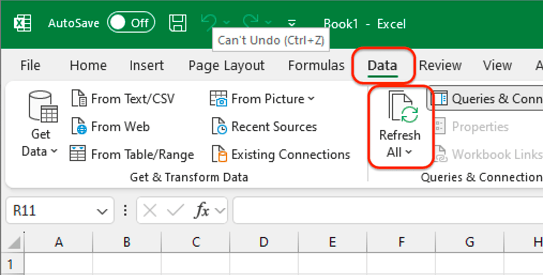
- In the spreadsheet, select Data > Refresh All.
To refresh data from a single remote document:
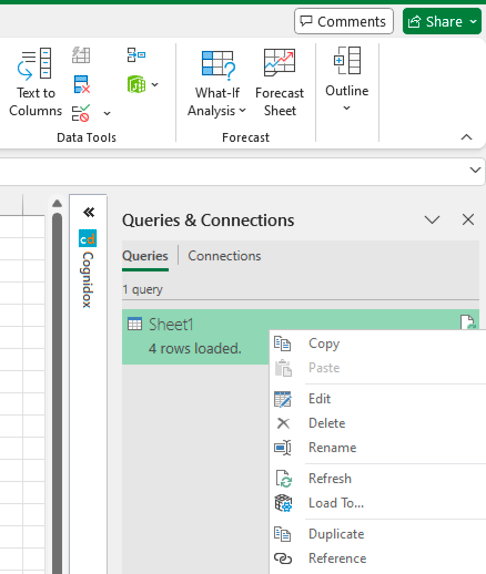
- Choose Data > Queries & Connections.
- Right-click the desired remote query and choose Refresh.
Prerequisites and instructions for SSO users
There are some things you need to bear in mind if you want to link between Excel spreadsheets. They are explained in the video below, and the following subsections.
Watch the video
Prerequisites
- There must be no multi-factor authentication (MFA) in place
- The password must be managed in Cognidox (even if SSO is being used)
- The remote document must be .xlsx or .xlsm format.
Configuring the MySQL Password plugin
For SSO users you need to do the following (this is not required if using username and password to sign into Cognidox):
- Go to Manage Cognidox > Settings & Configuration > Plugins > MySQL Password plugin.
- Ensure the plugin is Enabled.
- If Restrict to specified groups is set, ensure the user who needs access is in one of the groups.
- If Basic authentication users is set, ensure the user who needs access is listed.
- If using Single Sign-On (SSO), from the user’s User Details page, click Set Password to set the password in Cognidox.