
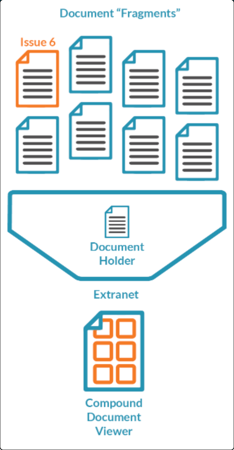
A compound Document Holder is a special type of Document Holder, used for building bespoke PDF output for customers on an Extranet. It only differs from a standard Document Holder in the way it is displayed, and in the way that its document fragments are licensed. It combines multiple approved documents into a single, continuous PDF. This is ideal when you need to present complex, multi-part content—like product manuals or regulatory submissions—as one seamless file.
Compound Document Holders are dynamic, update automatically, and respect user permissions or licenses when viewed on the Extranet.
Note:
- On your internal company Cognidox server, you can always switch between Standard View (all included DH files listed, not just PDFs) and Compound View (a single concatenated PDF file, comprising all available PDFs).
- On the Extranet, users only see the single concatenated PDF file in a viewer.
What's in this article?
What Is a Compound Document Holder?
A compound Document Holder:
-
Is a DH document type configured to render as a concatenated PDF
-
Uses a layout setting to trigger the compound view behavior
Instead of just listing documents as hyperlinks, the compound Document Holder displays them together—like a printed report—with table of contents, page navigation, and optional styling.
How It Works Internally
Internally, when a Document Holder uses Compound layout, Cognidox:
-
Converts the referenced documents to PDF format
-
Concatenates them based on the structure of your Document Holder
-
Uses the Compound Document Viewer to render a seamless PDF inside the browser
Compound Document Holders can be used with approval workflows, version control, and security profiles—just like standard DHs.
How It Works on the Extranet
When published to the Extranet, PDF documents that are approved will be available to customers based on their license status:
-
Unlicensed documents (published or unpublished) are available to customers only if they have a License valid for the containing Document Holder.
-
Licensed documents (published or unpublished) are available to customers only if they have both:
-
One or more Licenses valid for the containing Document Holder, and
-
One or more Licenses valid for the referenced document.
-
Users see only the content they are entitled to:
- If the viewer’s license only covers some of the referenced documents, the compound file will automatically exclude the others.
- If a particular license is applied to the containing Document Holder, and none of the referenced documents have extra license restrictions, the compound file will include all the referenced documents.
⚠️ If you want to preview the Extranet view, you’ll need to log in as a test user with the same license as your customer.
Note:
When a Compound Document Holder is published to the Extranet, Cognidox automatically applies a watermark to the concatenated PDF. This is intended as a security measure and helps identify externally shared content. The watermark is added during PDF generation and cannot be edited or disabled via the user interface.
If you need to customise or remove the watermark (e.g. for branding or legal purposes), please contact your Cognidox system administrator or support team.
Enabling Compound View
To enable compound view:
-
Create a new draft and open it in the Online Editor.
-
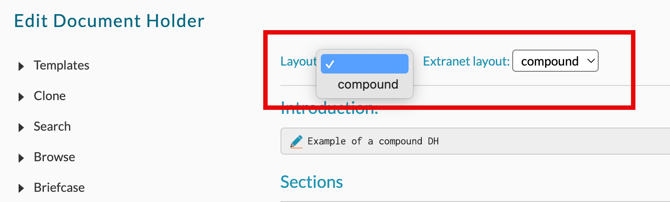
In the Layout drop-down, select the default view for Intranet users (they can switch between Standard View and Compound View):
-
standard (nothing selected): All files in the DH will be displayed in web view
-
compound: Only the concatenated PDF will be displayed in web view
-
- In the Extranet Layout drop-down, also select compound.
See below for information on the combined and zip settings.
Tip:
You can also do this manually in XML by setting the following in the <documentHolder> element:layout="compound"extranetLayout="compound"
See this help topic for more information.
Extranet layout settings explained
When adding a Document Holder draft or issue using the online editor, you have the following layout options for Extranet:
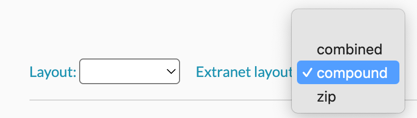
- combined: Downloads a combined PDF of the concatenated PDF files in the Document Holder.
- compound: Renders the concatenated PDF in the Compound viewer, with associated controls (zoom, find, presentation mode, etc.).
- zip: Downloads a zip file with an index of all the packages in the Document Holder.
Note: Unlike Intranet users, Extranet users do not have the option to switch between available layout types when viewing a Compound Document Holder.
Licensing and Access Control
-
A compound holder itself can be licensed like any document
-
The visibility of individual fragments depends on whether the user is licensed to see them
-
Internal users are restricted by security profiles
-
Extranet users are restricted by licenses
✅ Using the APPROVED alias ensures your compound DH always shows the latest approved version of each document.
Use Cases and Best Practices
Typical use cases
Common examples of compound Document Holders include:
-
Product manuals (bundling hardware and software instructions)
-
Technical files for regulatory submissions
-
Partner packs or customer onboarding kits
-
ISO documentation bundles
Tips:
- Use licensing to restrict visibility of specific files within a Document Holder (e.g. source code)
- Use version-specific Document Holders as archives, so customers can go back and reference previous versions of software releases, for example. If you only use the LATEST alias in referenced files, customers will never be able to access earlier releases of documents/software, since they are updated automatically in the containing DH.
Best practices
-
Keep documents well-structured by section
-
Use textile formatting in section notes or intros for clarity
-
Use APPROVED references for dynamic updates
-
Test with different user roles to confirm visibility
Further information
Other articles in this series:
- Introduction to Document Holders
- Creating and structuring a Document Holder
- Populating a Document Holder
- Document Holder Advanced Features: Templates, Cloning, and Reusing Sections
- Approving, Licensing, and Publishing Document Holders
- Downloading, Reviewing, and Tracking Document Holders
Online help pages: